
Start from the right page
Choose the site in the dashboard and open Studio. Select the page you want to edit. The page canvas shows its current composition; selecting an element exposes the controls relevant to that element.
For a small content change, select the text, image or button you want to update. Keep headings descriptive, add useful alternative text to meaningful images, and choose a clear destination for each link.
Work with reusable design
Studio supports pages, themes, navigation and reusable blocks. A shared design element can affect more than one place. Before changing a reusable block or shared navigation, check where the change will appear. Templates and available recipes can differ between sites.
Use the available page and element structure controls to keep related content together. Prefer a consistent spacing and typography system over adjusting every element independently.
Save, preview and publish
Check the saved state before leaving your work. Preview the page at desktop, tablet and mobile widths, then follow its links and primary actions. Layout changes that look fine on a wide canvas can need a different arrangement on a narrow one.
Editing and publishing are separate permissions. If you can edit but cannot publish, ask the person responsible for the site to review your saved changes. Continue with Layouts and conditions for responsive controls or Workflows for interactions.
Edit directly in simple mode
On desktop, click a supported text field on the canvas and type directly. Select a block to show its resize handles and compact size labels. Drag a handle or use its keyboard controls; check each viewport after resizing. Width follows responsive sizing and height uses a content-safe minimum, so longer text can still expand the block.
Use the breadcrumb row to select a parent container. The same desktop row keeps viewport sizes, Edit/Preview, undo/redo and inspector access close. Page settings sit beside the page path. When editing custom chrome, use the header/footer switch at the left of this row. The page badge at the top opens the page picker. Adding a block or opening a tool keeps simple mode active.
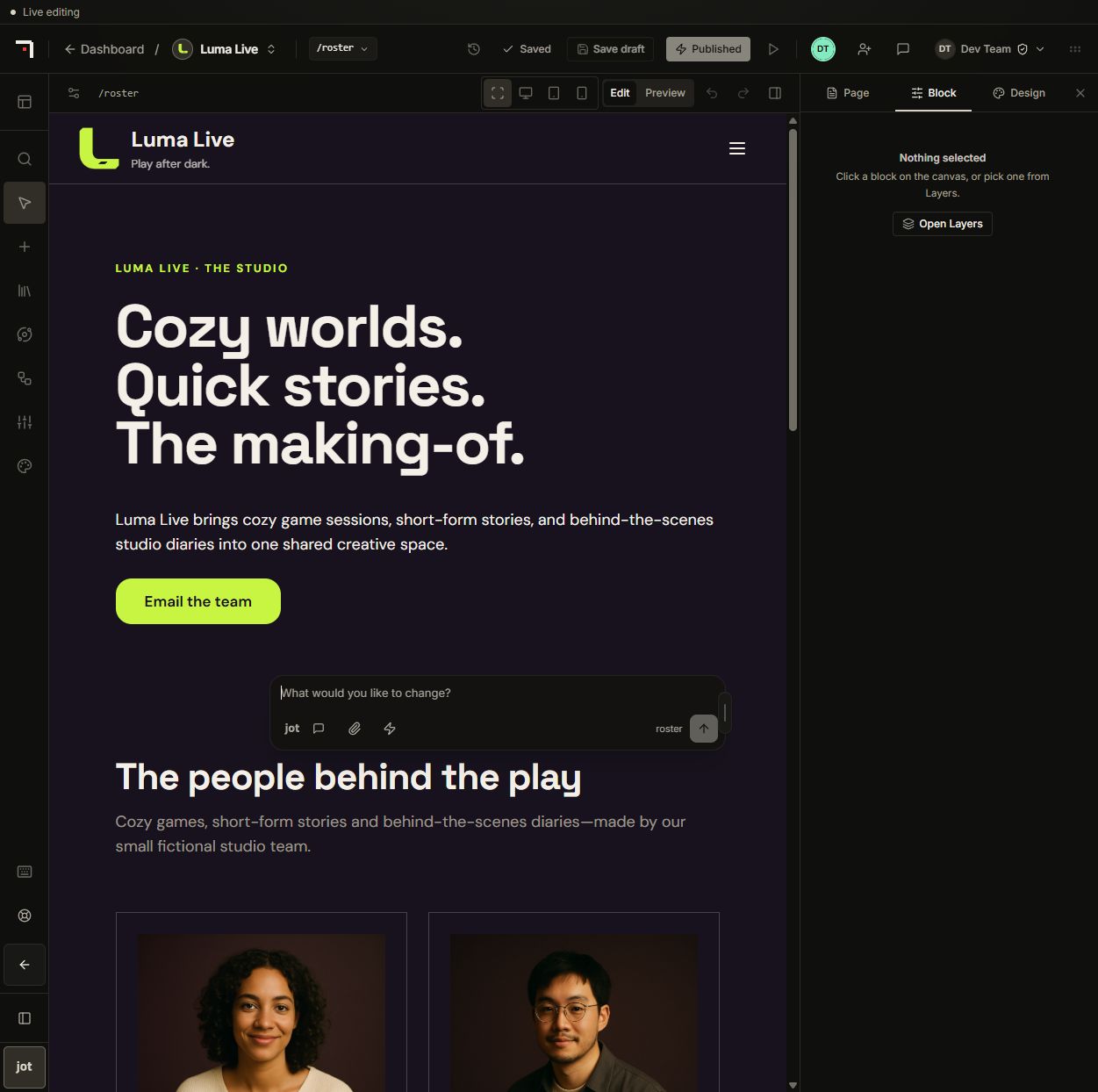 Demo site in desktop simple mode. Page and viewport controls stay above the canvas; Jot opens from the bottom of the left rail.Viewport 1251 × 1244px
Reuse content and theme styles
Built-in FAQ custom blocks keep questions and answers in one repeatable list with add, remove and reorder controls. Profile and card blocks expose their own content fields; use those controls for tabs, details and native content areas. Shared custom definitions can affect multiple placements, so distinguish a placement's content from its reusable design.
Primary, Accent, Outline, Danger and Ghost button styles are saved styles tied to theme colors. You can alter these built-in styles but cannot remove them. New pages join navigation by default when published; choose Hide from navigation to leave a page out.
Work with teammates and reviewers
The stacked avatars at the top identify people in the current Studio session. Colors connect each person to their selection and pointer. Text selection can show where a teammate is typing; edge arrows help you find someone viewing another part of the page. Native page drafts and custom header/footer documents use separate collaboration sessions. Record-template designers and managed header/footer settings are outside these shared block-document sessions.
Live editing shares unpublished draft changes. It does not publish the website or promise character-by-character merging when two people rewrite the same text field. Avoid simultaneous rewrites of one field, check the saved state and handle any reconnect or conflict message before publishing.
Open Invite a viewer. Email invitations use the site's Viewer role, which also permits the site dashboard and visitor numbers. For access to only this page without sign-in, create a guest link with the displayed expiry, then share it deliberately. Anyone holding that link can read the unpublished page while it is valid. Revoke it when the review is finished; existing connections may take up to 60 seconds to stop.
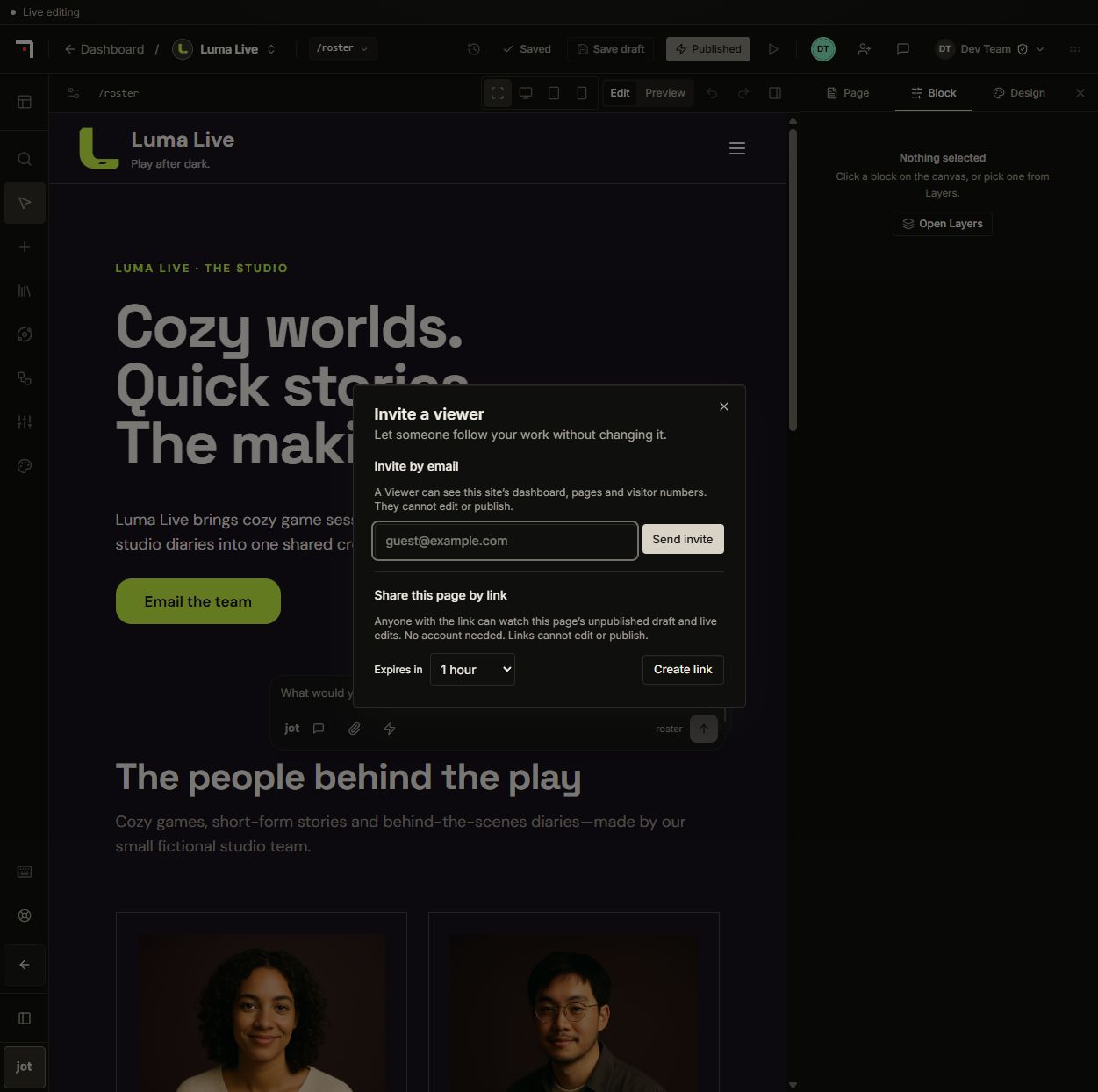 Email invitations grant the site Viewer role. A guest link grants access to one unpublished page and defaults to one hour. This capture sends no invitation and creates no link.Viewport 1251 × 1244px
Guests can switch between Highlight / comment and Interactive. In highlight mode, select a block and use Comment on this block to leave feedback. Comments are visible to other reviewers of that page, including other active guest-link holders, and remain after a link expires. Interactive mode lets a guest try supported page interactions. Neither mode grants page editing or publishing.
See Jot for reviewing assistant proposals and Team access for membership permissions.