Start with the responsibility
Decide what the person needs to do before choosing their access: edit content, publish changes, manage leads, work on billing or help with account administration. Site permissions and account permissions answer different questions.
Use the team's invitation controls for the selected account or site. Check the recipient and intended scope before sending the invitation. After acceptance, review the person's membership and available role controls.
Separate editing from publishing
A person who can draft content does not necessarily need to publish it. Billing and people management can also be separate responsibilities. Choose the narrowest existing role or available permission arrangement that supports the person's actual work.
If a control is missing or an action is refused, confirm the selected site and the member's access before repeating the request. Visibility in the interface is not the only check; actions are authorized on the server.
Review access over time
Use the available activity and access history when checking administrative changes. The history you can see depends on your role and the records available to that account.
For agency work, distinguish the agency workspace from a separately owned client account. A client-site handoff removes agency access unless the new owner grants it again. Review that change with the client before relying on continued access after handoff.
Invite a Studio viewer
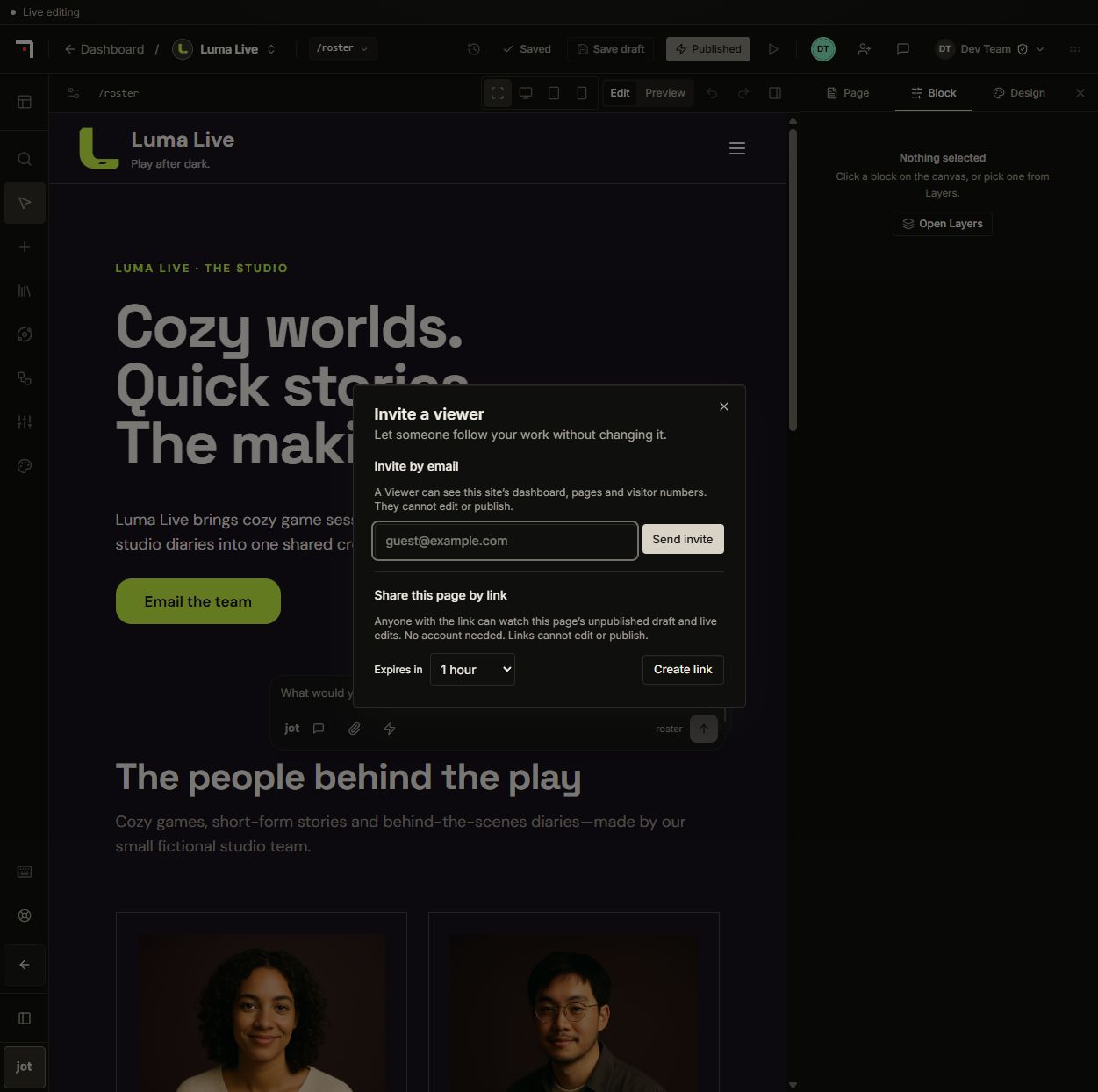
In Studio, Invite a viewer offers two different scopes. An email invitation grants the existing site Viewer role, including the site's dashboard, pages and visitor numbers, without editing or publishing. An expiring guest link needs no account and grants view access to only the selected page's unpublished draft and live changes. Anyone holding it can use it until expiry or revocation. Link administration requires the site's people-management permission.
Guest review comments are visible to reviewers of that page and remain after the link expires. Header/footer design editing still requires design permission; page editing alone does not grant it.
Profile photos and official forum identity
Upload a JPG, PNG or WebP profile photo from Account, adjust its placement and zoom, then save. Your photo appears across EasyAsPie and is retrievable by anyone holding its image URL. Replace or remove it from your own Account settings.
Platform administrators can manage a separate nith team forum-posting permission. Authorized teammates post or reply as nith team while retaining their own login and existing forum permissions. The platform records the actual author internally; posting as the team does not confer forum administrator access.